Every setting under Authentication: URL configuration, sessions, rate limits, multi-factor, passkeys, attack protection and custom JWT claims — what each does, defaults and plans.
Site URL is your app’s address; email links open it with ?token=…&type=… when no allowed redirect is given. Redirect URLs are the other addresses sign-in may return to — https://*.example.com/auth/** patterns and app schemes like myapp://callback. Mobile apps register exact redirects under Mobile apps.
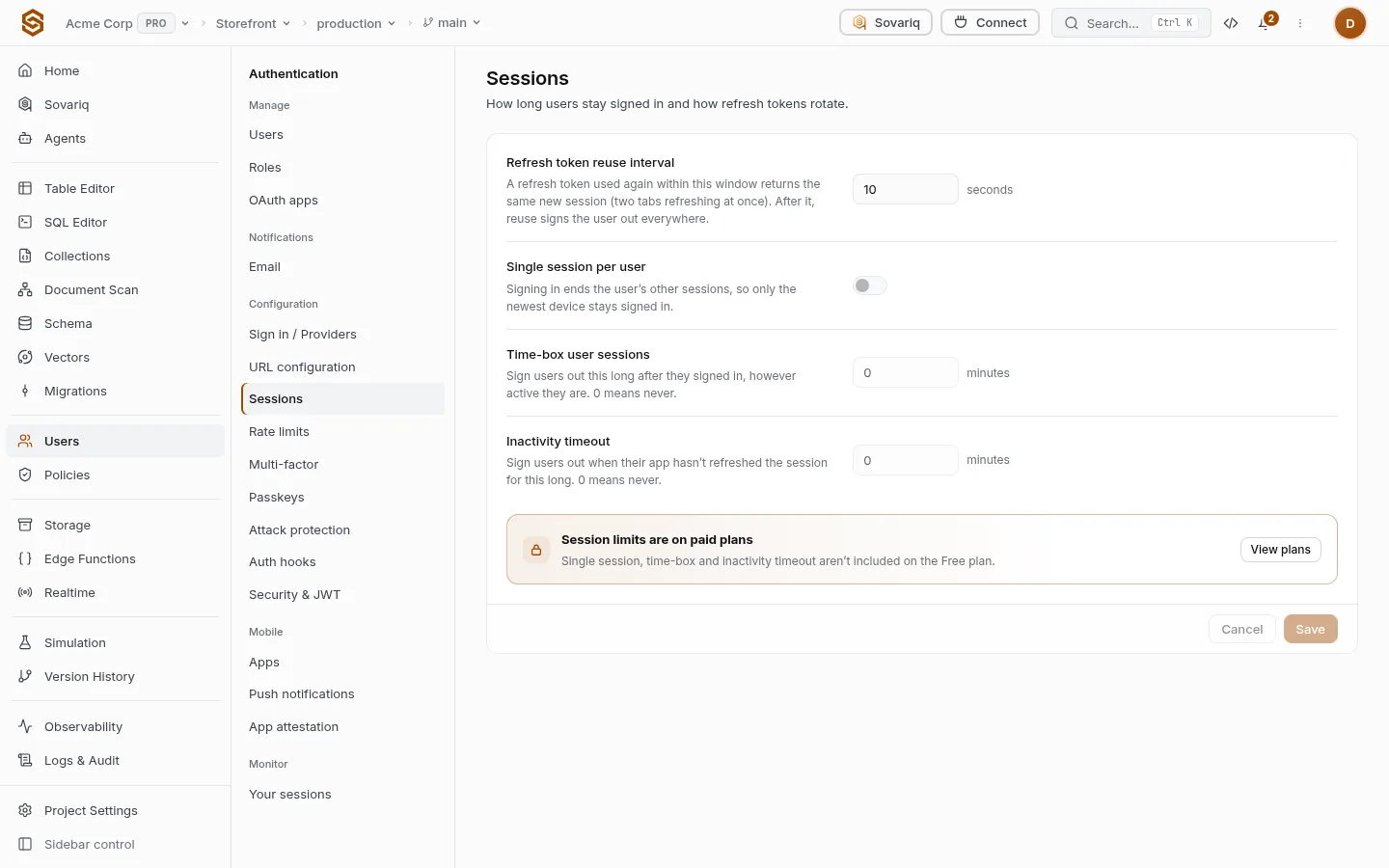
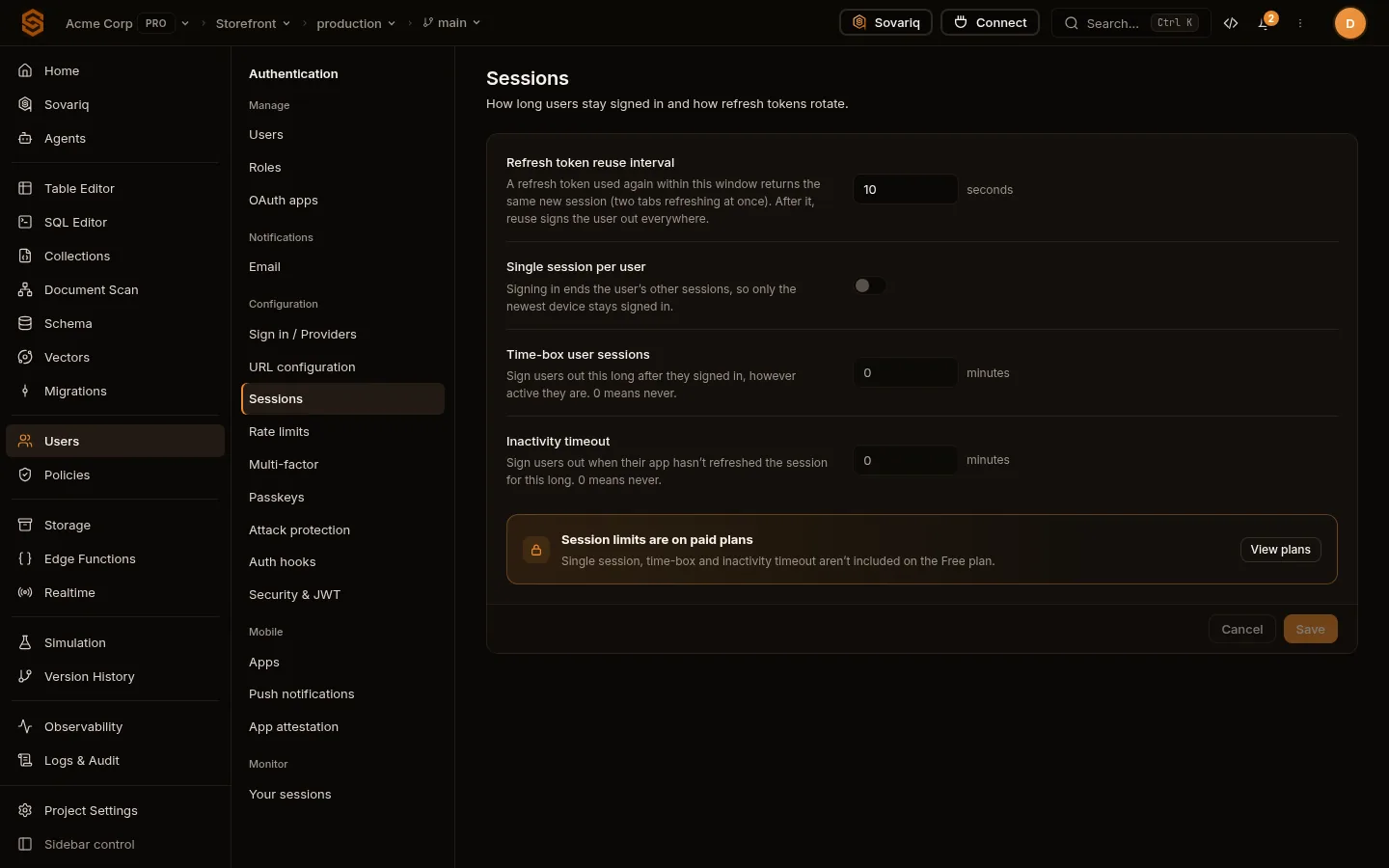
A refresh token used again within this window returns the same new session (two tabs refreshing at once). After it, reuse is treated as theft and signs the user out everywhere.
10 seconds
Single session per user
Signing in ends the user’s other sessions; only the newest device stays signed in.
Off, except banking-style apps
Time-box user sessions
Sign users out this long after they signed in, however active. 0 = never.
0, or 12 hours for admin apps
Inactivity timeout
Sign users out when the app hasn’t refreshed the session for this long. 0 = never.
0, or 30 minutes for shared computers
Free
Pro
Ultra
Team
Enterprise
Session time-box, inactivity timeout and single session
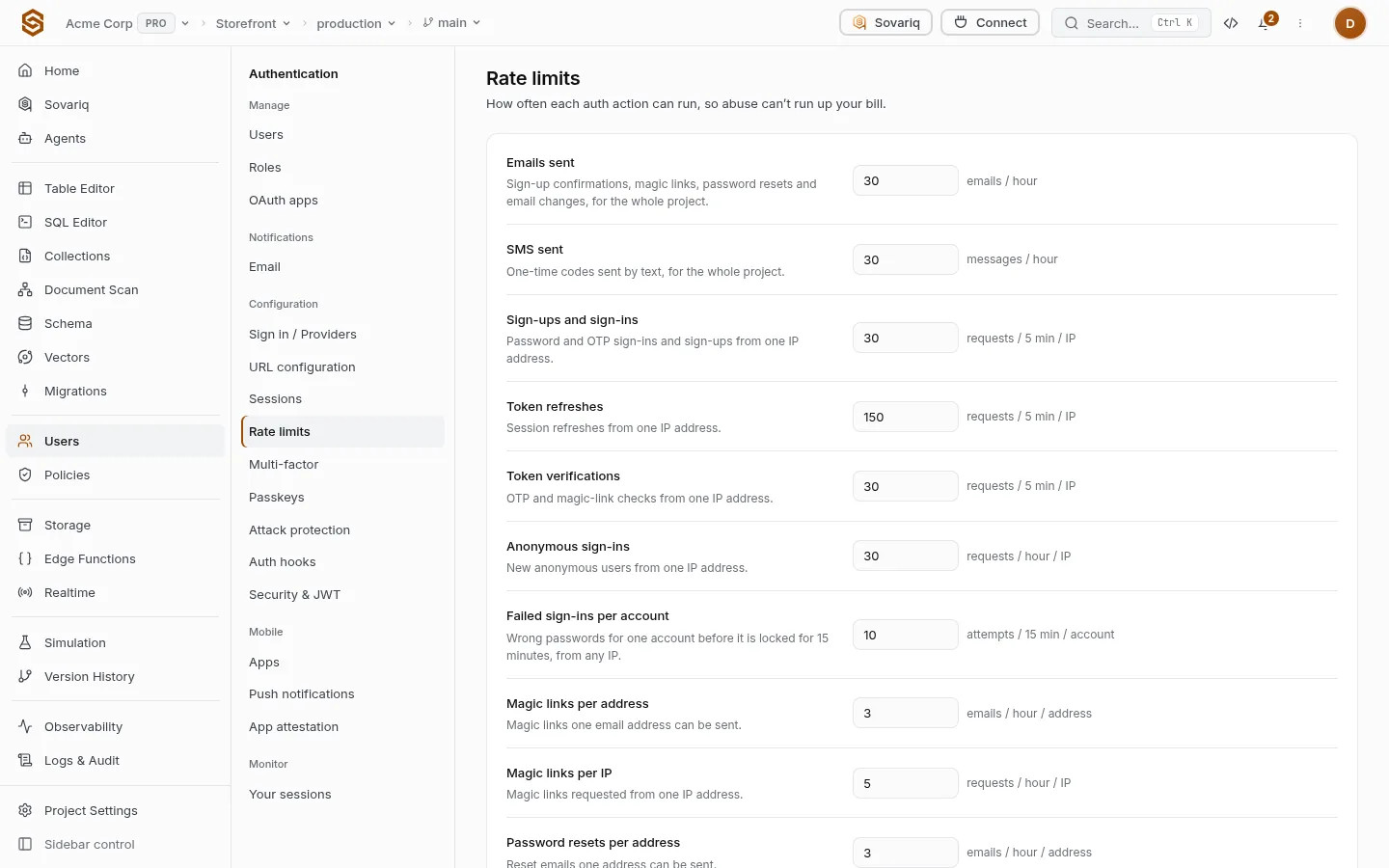
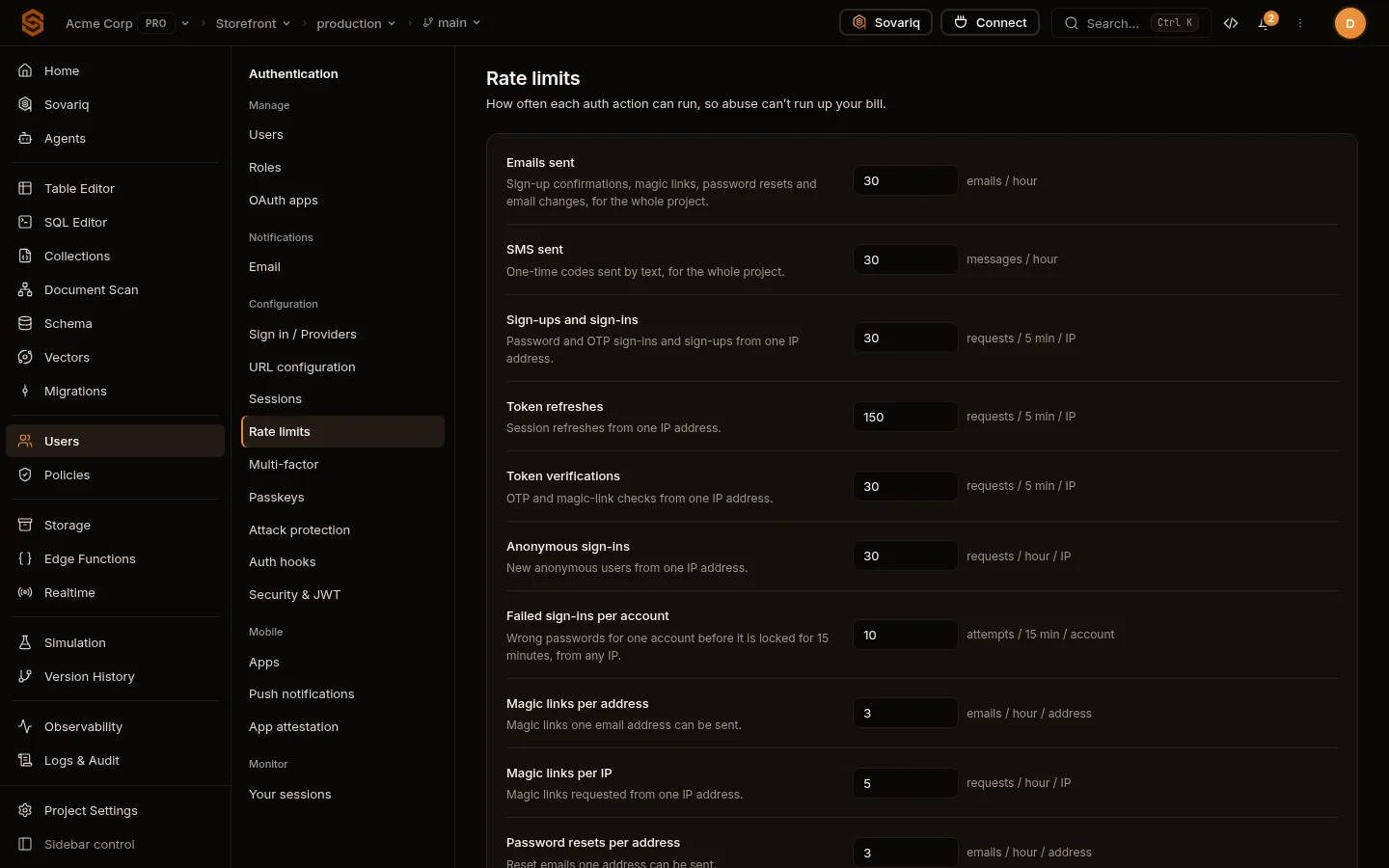
Over a limit, requests get 429 AUTH_RATE_LIMITED with Retry-After. Raise a limit only for a real reason (a classroom on one school IP); attackers rely on generous ones.
Limit
Counts
Unit
Emails sent
Confirmations, magic links, resets and email changes for the whole project.
per hour
SMS sent
One-time codes by text for the whole project.
per hour
Sign-ups and sign-ins
Password and OTP sign-ins and sign-ups.
per 5 min, per IP
Token refreshes
Session refreshes.
per 5 min, per IP
Token verifications
OTP and magic-link checks.
per 5 min, per IP
Anonymous sign-ins
New anonymous users.
per hour, per IP
Failed sign-ins per account
Wrong passwords before the account is locked for 15 minutes, from any IP.
per 15 min, per account
Magic links
Per address and per IP.
per hour
Password resets
Per address and per IP.
per hour
Email code attempts
Wrong guesses at a 6-digit code before it and its link stop working.
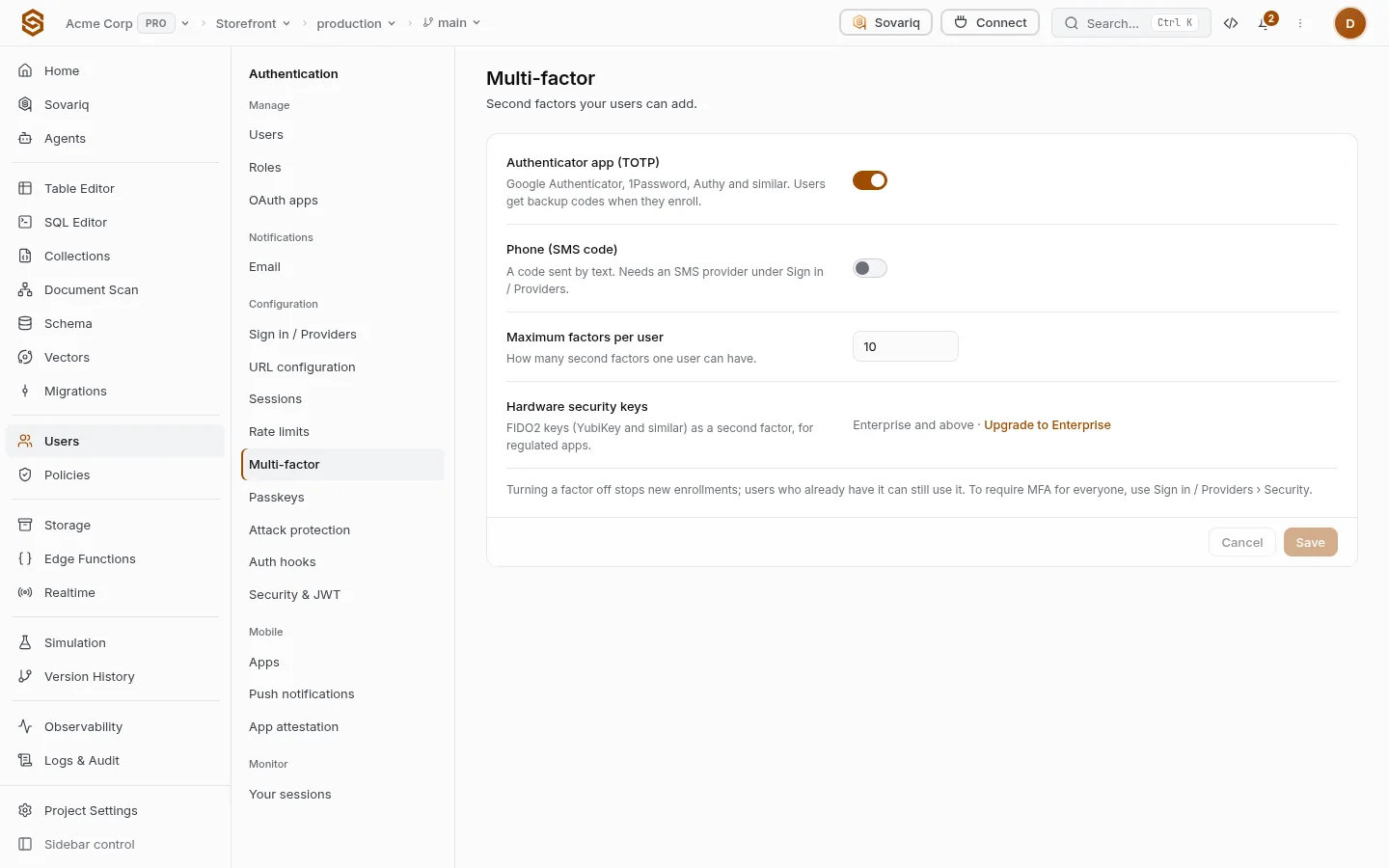
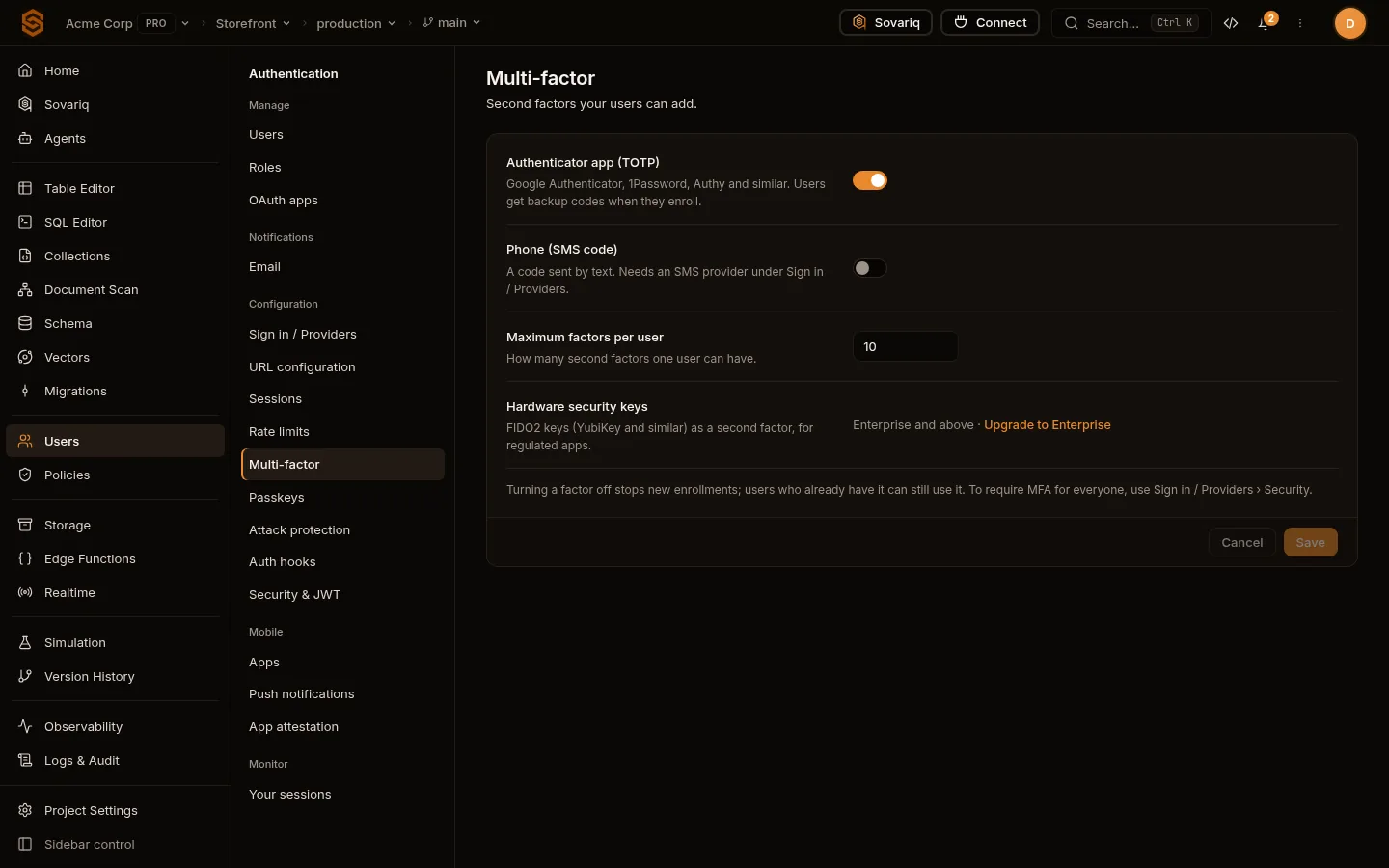
Turn on Authenticator app (TOTP) and/or Phone (SMS code) and set Maximum factors per user. Users get backup codes when they enrol an authenticator. Turning a factor off stops new enrolments; users who have it can still use it. Require MFA for everyone under Sign in / Providers › Security. Hardware security keys as a second factor are on Enterprise.
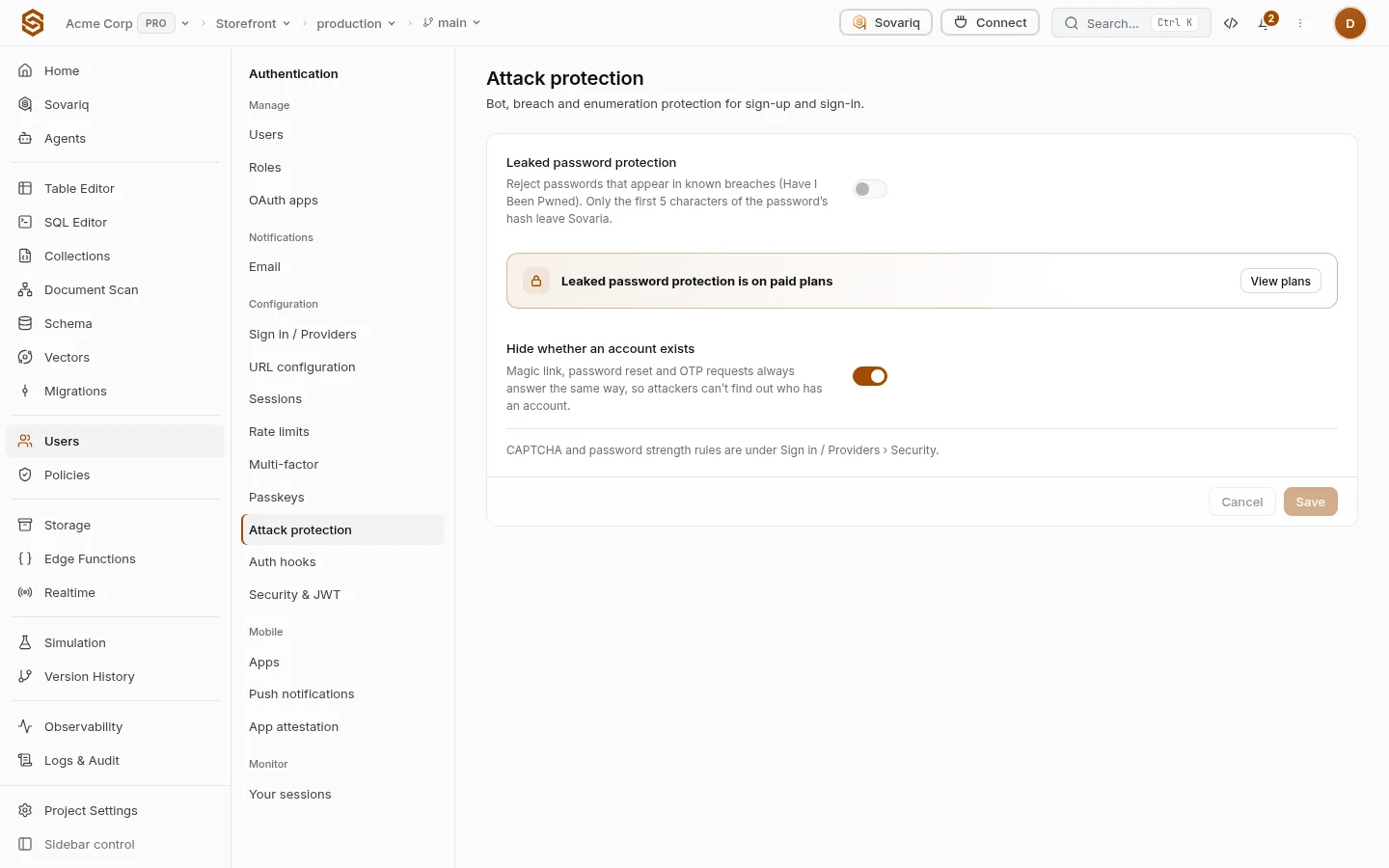
Leaked password protection rejects passwords found in known breaches (Have I Been Pwned). Only the first 5 characters of the password’s SHA-1 hash leave Sovaria (k-anonymity).
Hide whether an account exists — magic link, reset and OTP requests always answer the same way, so attackers can’t learn who has an account.
CAPTCHA on sign-up, sign-in and reset (Sign in / Providers › Security).
Register an HTTPS hook Sovaria calls on every token issue. The request is signed (X-Sovaria-Signature) and carries the user id, project context and base claims; the hook answers with extra keys that are merged into the token’s ctx, so your app and functions can read them from the session. Keys Sovaria owns (roles, org_id, project_id…) are ignored, and a hook slower than 50 ms is skipped so sign-in never waits — stock claims are used instead. If your plan stops including custom claims, tokens go back to stock claims.