

Auth emails
The emails your users receive, how to customise them, and how to send from your own domain.
Sovaria sends these emails to your app users on your behalf. They carry your project name, and links point to your Site URL or allowed redirect URLs.
| Sent when | Template key | |
|---|---|---|
| Confirm your email | Sign-up, when verification is required | email_verification |
| Reset your password | A reset is requested for an existing account | password_reset |
| Sign-in link and code | A magic link is requested | magic_link |
| Password changed | After a password change or reset | password_changed |
| New sign-in | A sign-in from a device not seen before | new_sign_in |
| Confirm email change | A user changes their email (to old and new address) | email_change_confirm_old, email_change_confirm_new |
Customise the templates
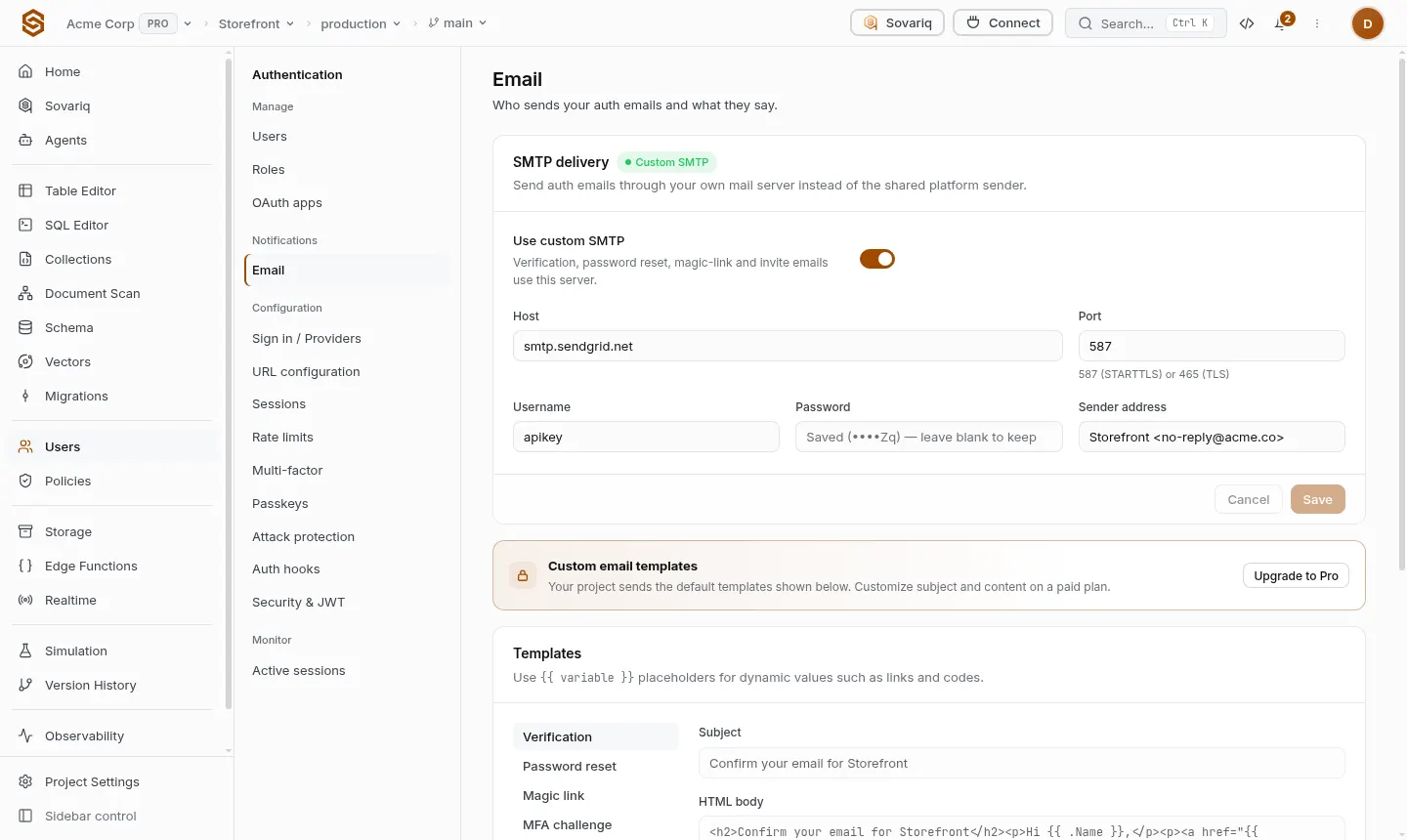
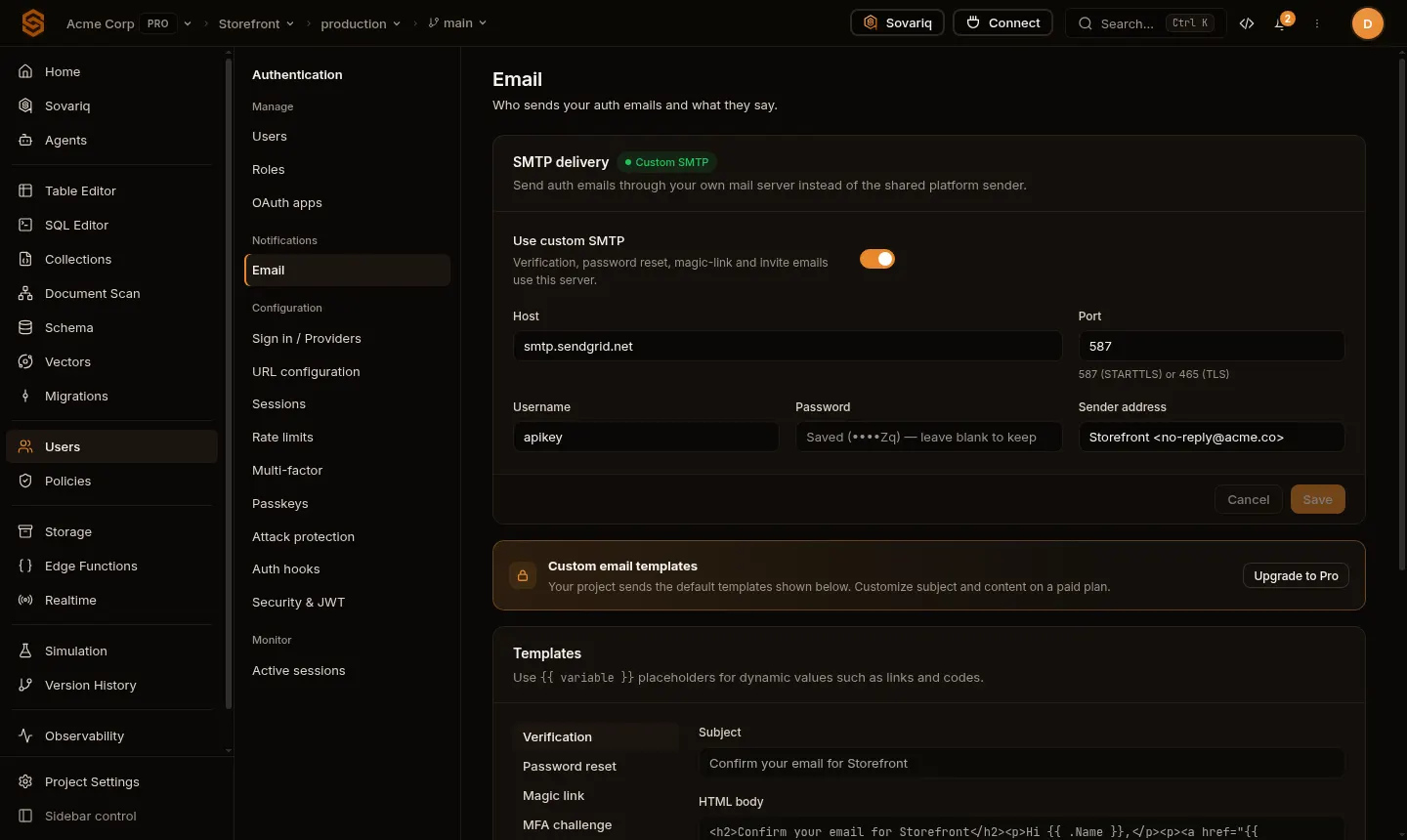
On plans that include custom email templates, edit subject and body under Users → Emails. Use placeholders such as {{ project_name }}, {{ confirmation_url }}, {{ reset_url }}, {{ magic_link_url }}, {{ otp_code }} and {{ ttl_minutes }}. Values are escaped automatically, so a user's name can never inject HTML. Reset to default restores the built-in template at any time.
Send from your own domain
Under Users → Emails → SMTP, add your own SMTP server so emails come from your domain. Credentials are encrypted at rest. Without custom SMTP, emails are sent by Sovaria.
Security alerts
New-sign-in and password-changed emails are on by default. Turn them off with Users → Settings → Security alert emails if your app sends its own.