

Tutorial: build your first app with Sovariq
Ask Sovariq for an ERP and follow it from the plan to a published app: a template to start from, six tables with row rules, app roles, a bucket and a function, the pages beside the chat and a browser test.
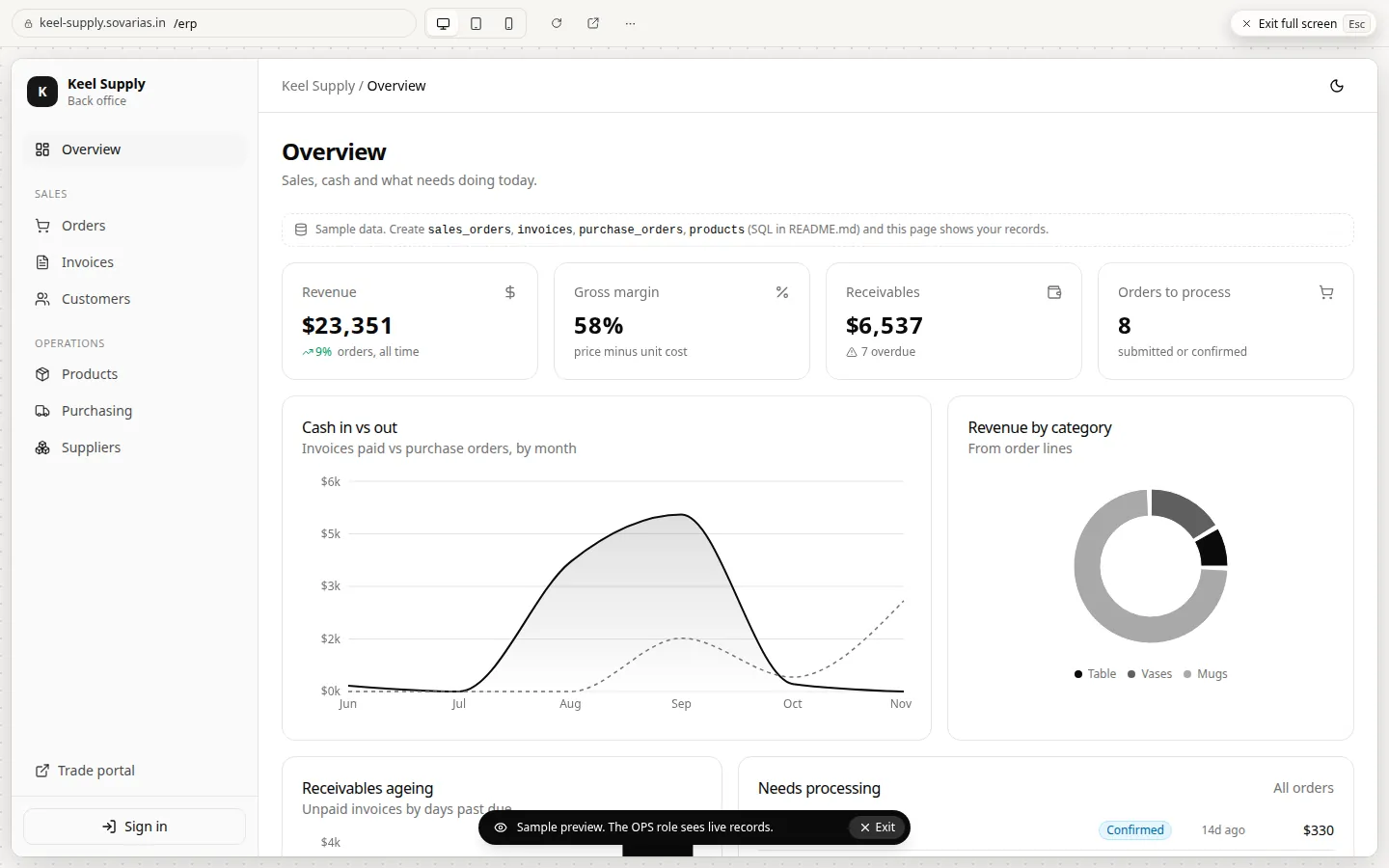
You will build Keel Supply, the back office of a small wholesale business: products and stock, customers, orders, invoices, suppliers and purchasing, a dashboard for the team, and a portal where trade customers order and see their invoices. You ask for it in one message on the Sovariq page. Sovariq plans it, starts from the Keel ERP template, sets up the backend in your project, builds the pages beside the chat, tests them and publishes when you say so.
- A Sovaria project (Quickstart). An empty one is best; Sovariq reads what is already there and builds around it.
- Sovariq credits: the console estimates about 600 to 1,500 for a whole app, and the plan shows the estimate for yours before anything is built (Plans, usage and limits).
- About ten minutes.
#1. Describe the app
Open Sovariq in the project sidebar and say what the app is for: who uses it, what they do, who runs it. Naming a template is optional; Sovariq looks through the gallery itself.
Build an ERP for Keel Supply, my wholesale business: products and stock, customers, orders, invoices, suppliers and a dashboard. My team gets the back office, customers order from a portal. Start from a template.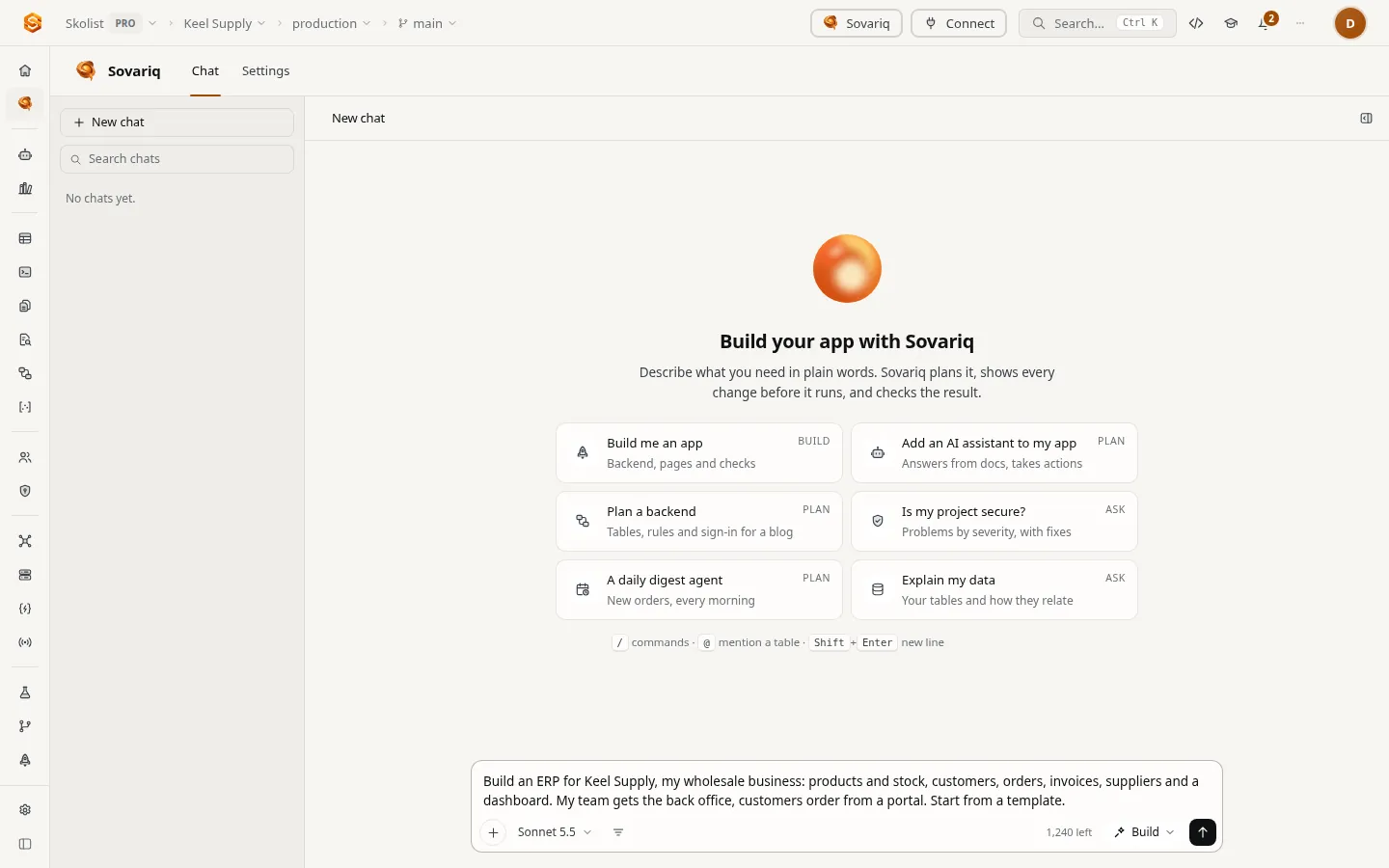
#2. Read the plan, then approve it
Before it builds anything, Sovariq answers with a plan: every page with who can open it, every table with its columns and access rules, sign-in and roles, integrations, the design, open questions and a credit estimate.
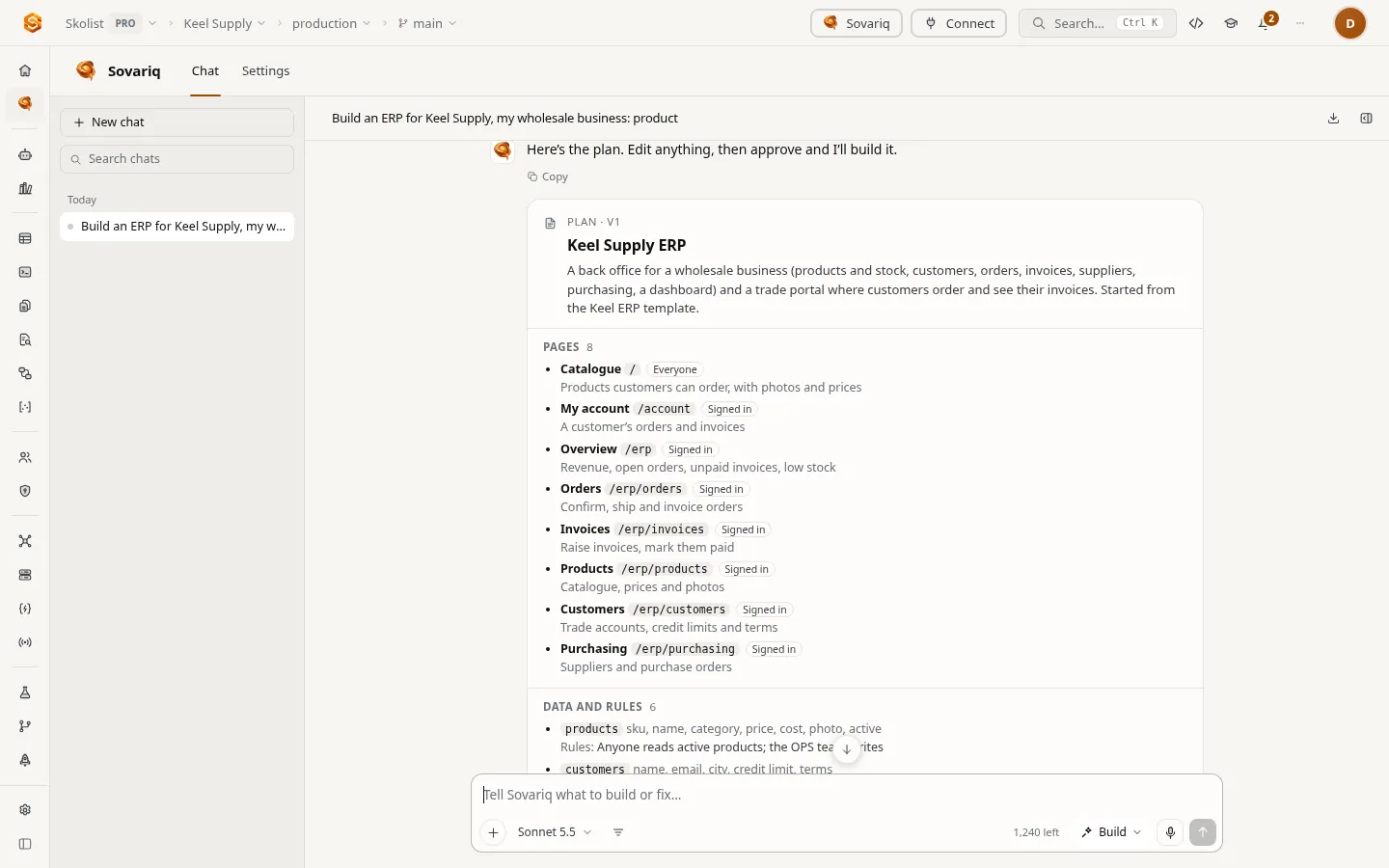
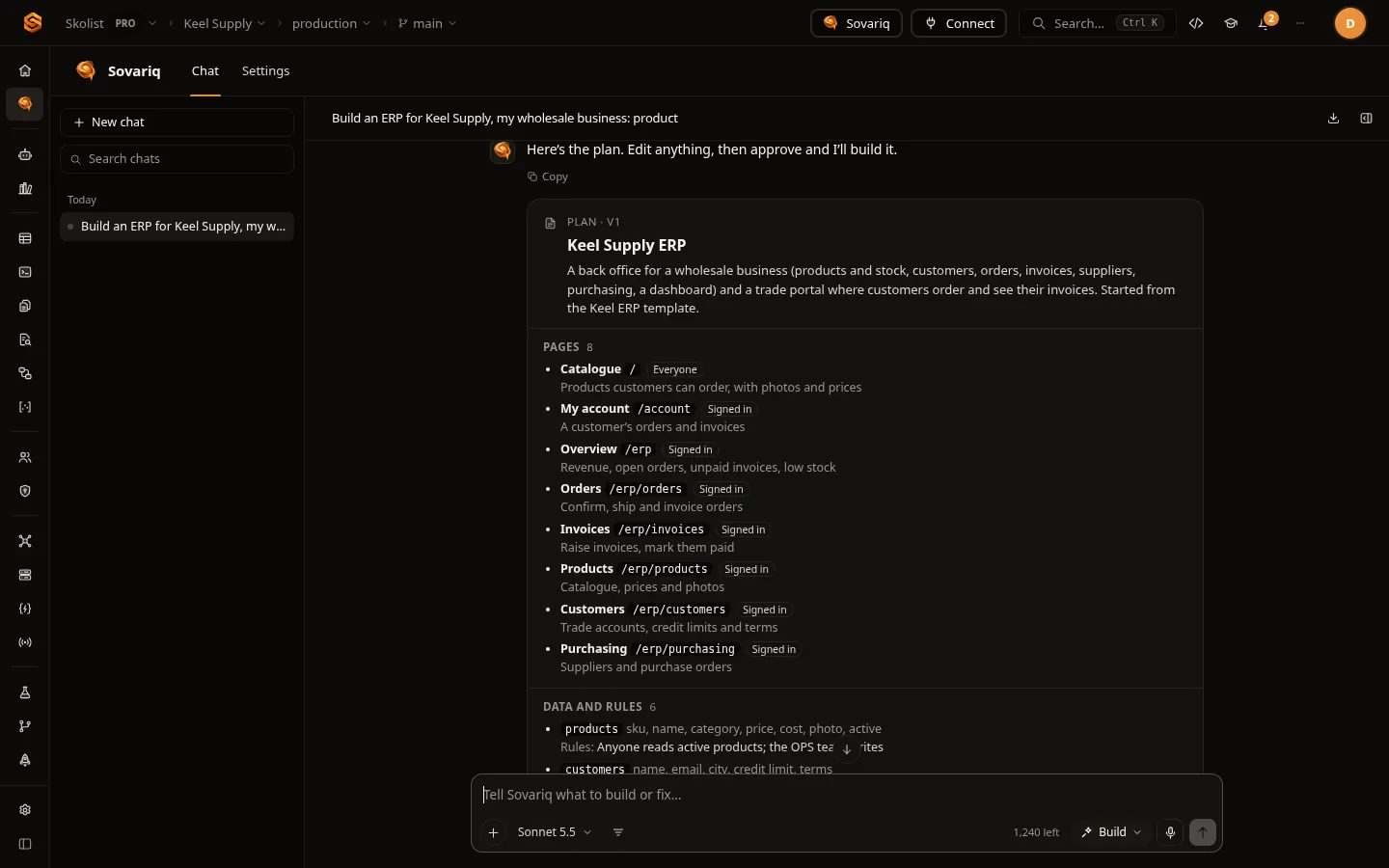
- Read the rules first. They say who can read and change each table: here the OPS team runs everything, and a customer sees only their own account, orders and invoices.
- Build without asking lets the build run without stopping for each database change. Leave it off to approve every migration yourself. Pause after each checkpoint stops after the backend, the pages and the polish.
#3. The app opens beside the chat
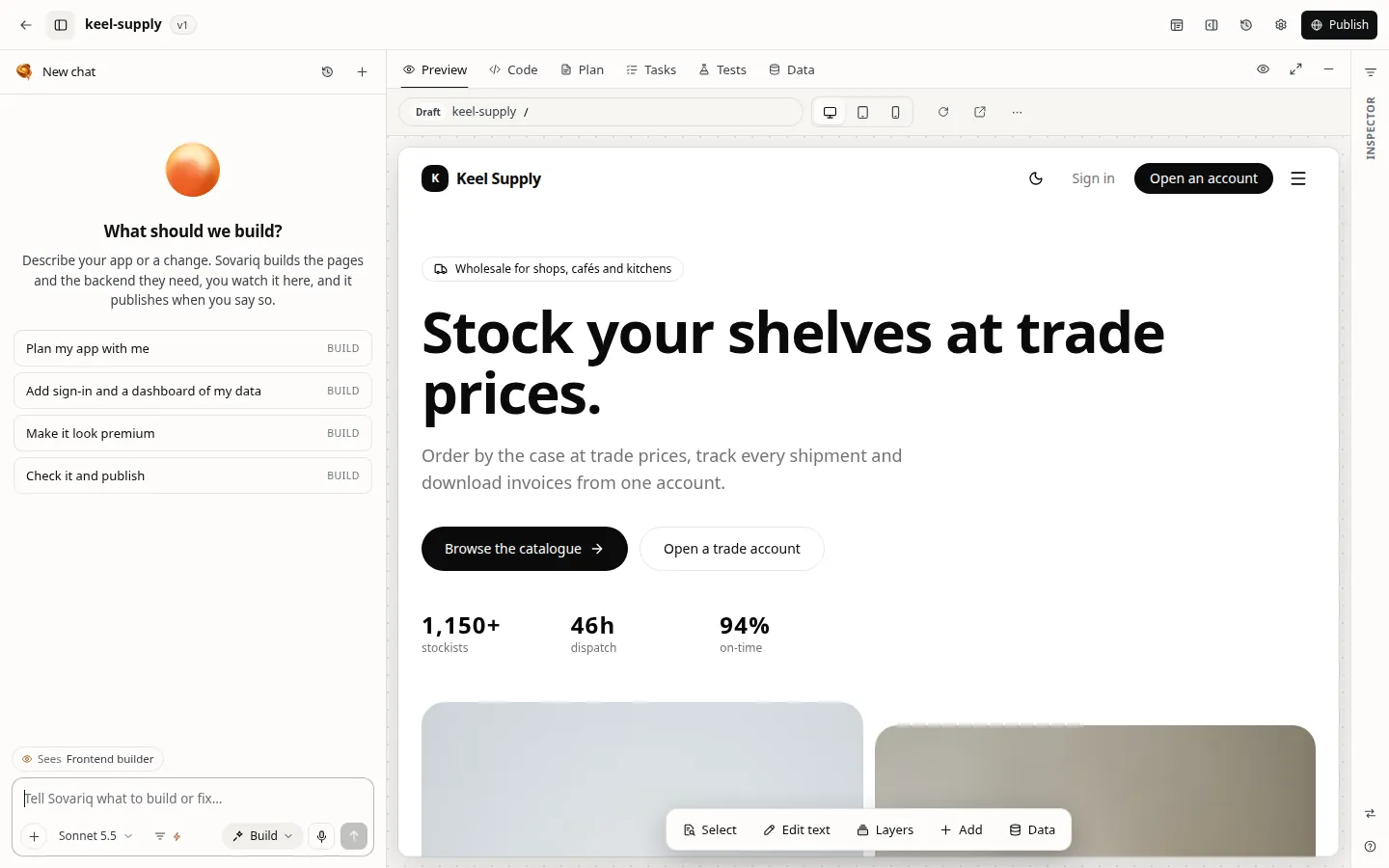
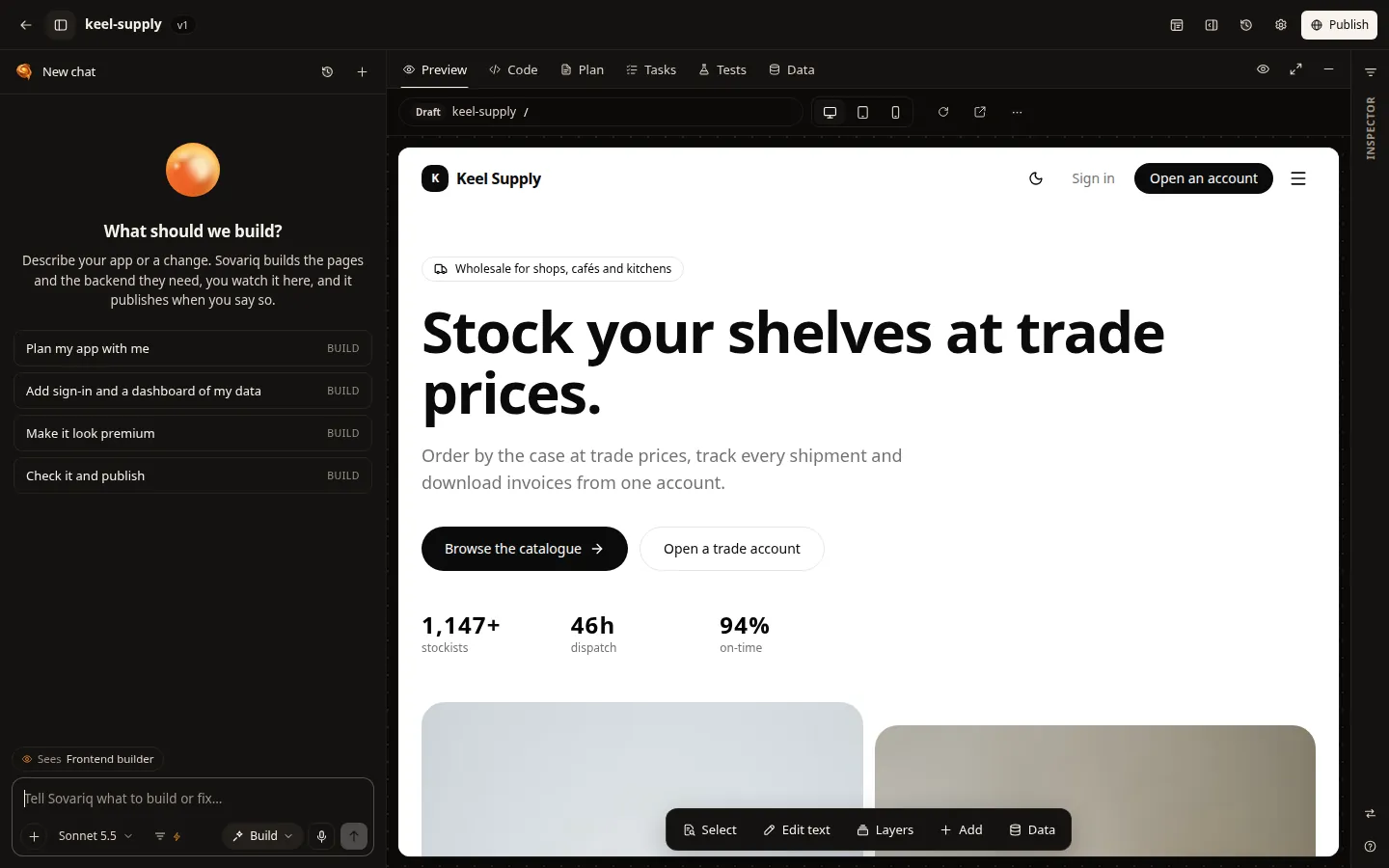
On Approve & build, Sovariq starts the app from the Keel ERP template (fe_use_template) and the app opens next to the chat with a live preview, built in your browser. Open studio opens the full studio with the Code, Plan, Tasks, Tests and Data tabs.
#4. The backend: tables, rules, roles, a bucket and a function
Each step shows in the chat with its input, its result and its checks. For Keel Supply Sovariq applies two migrations, then adds the roles, the photo bucket and a function:
create table sales_orders (
  id uuid primary key default gen_random_uuid(),
  number text not null,
  customer_id uuid references customers(id) on delete set null,
  customer_email text not null,
  lines jsonb not null default '[]',
  total_cents integer not null default 0,
  status text not null default 'submitted'
    check (status in ('submitted', 'confirmed', 'shipped', 'invoiced', 'cancelled')),
  notes text,
  created_at timestamptz not null default now()
);
alter table sales_orders enable row level security;
alter table sales_orders force row level security;

-- The back office: users with the OPS or ADMIN app role.
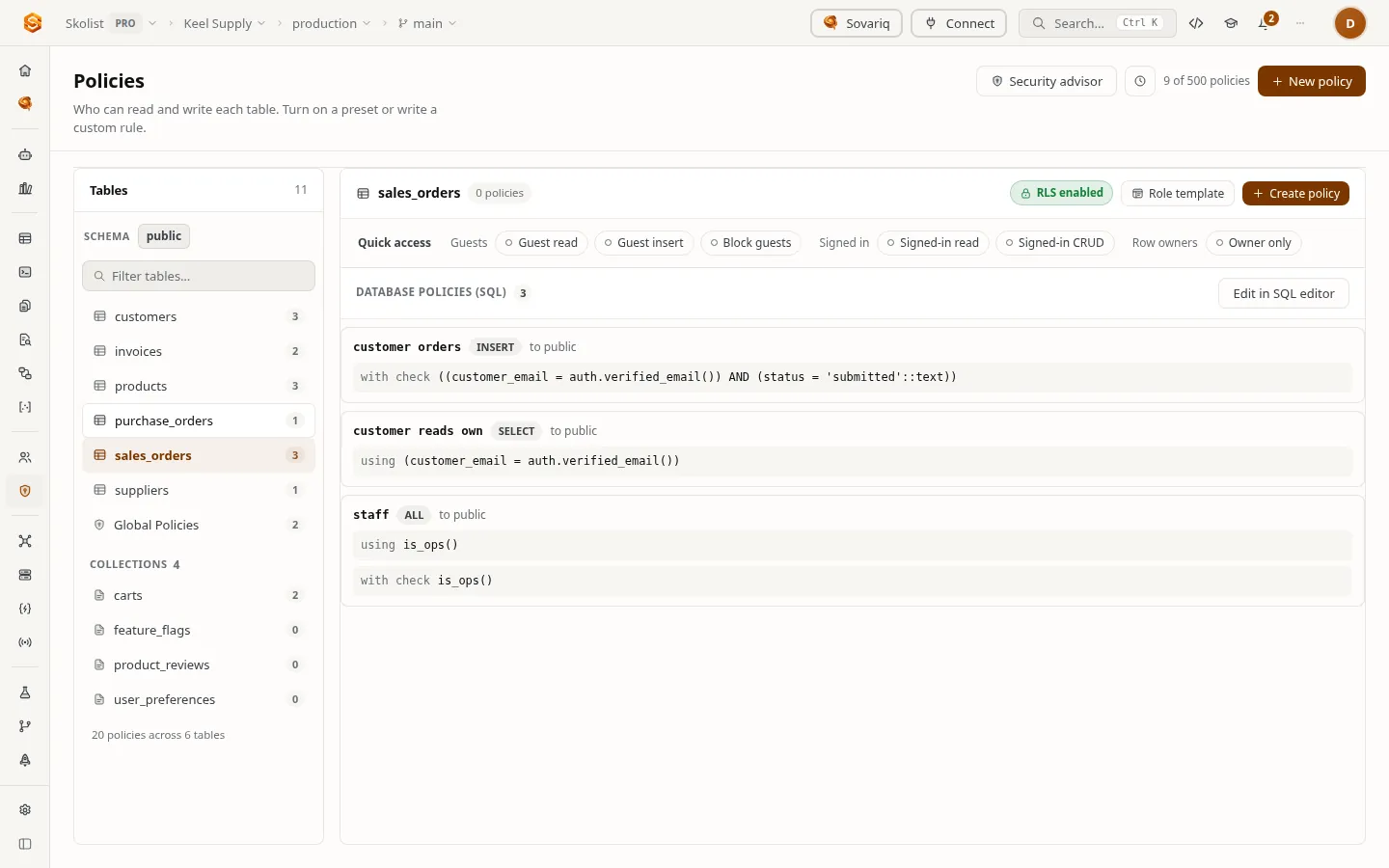
create policy "staff" on sales_orders for all using (is_ops()) with check (is_ops());
-- Customers place orders as themselves, and read their own.
create policy "customer orders" on sales_orders for insert
  with check (customer_email = auth.verified_email() and status = 'submitted');
create policy "customer reads own" on sales_orders for select using (customer_email = auth.verified_email());products, customers, invoices, suppliers and purchase_orders follow the same pattern.- App roles:
OPSandADMIN(create_app_roles). Give your team the role under Users › Roles; policies check it withauth.has_role('OPS')(Row-level security and access). - A bucket:
products, public to read, OPS to write, for product photos (Storage). - A function:
order-totaltotals an order from the catalogue’s prices, so a customer can’t send their own total (Functions). Sovariq deploys it and test-invokes it. - Check access: Sovariq reads
sales_ordersas one customer and confirms another customer’s orders stay hidden.
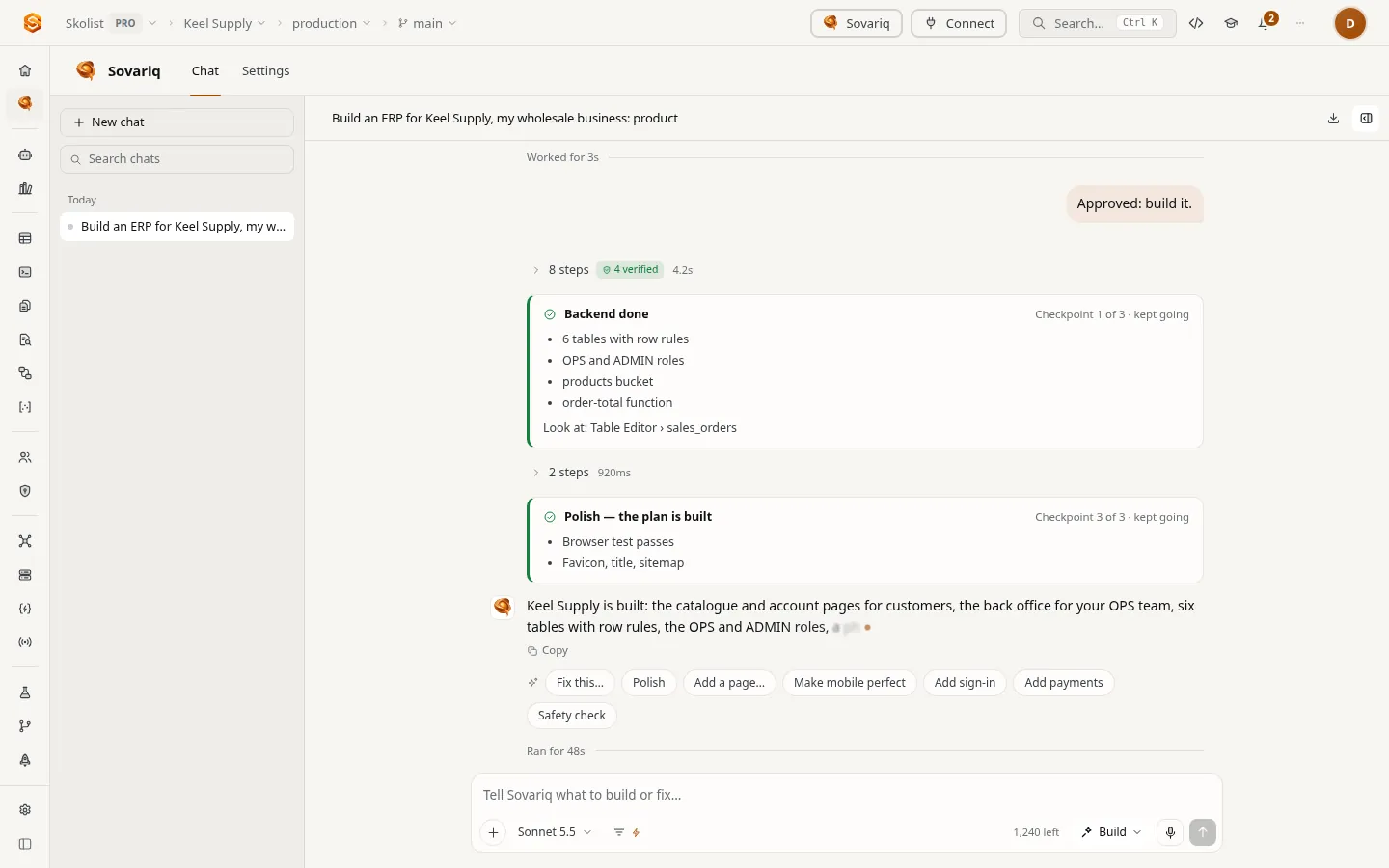
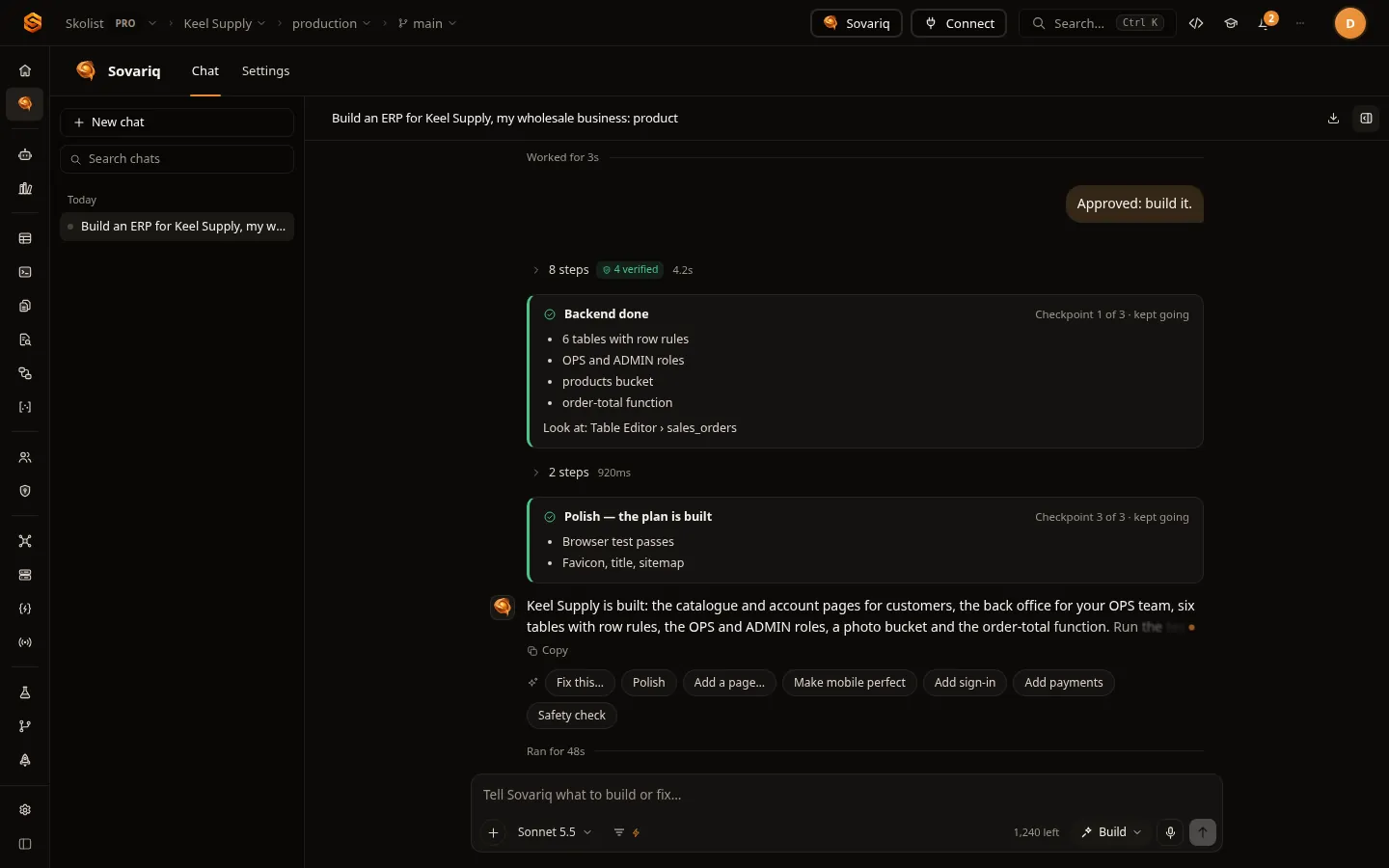
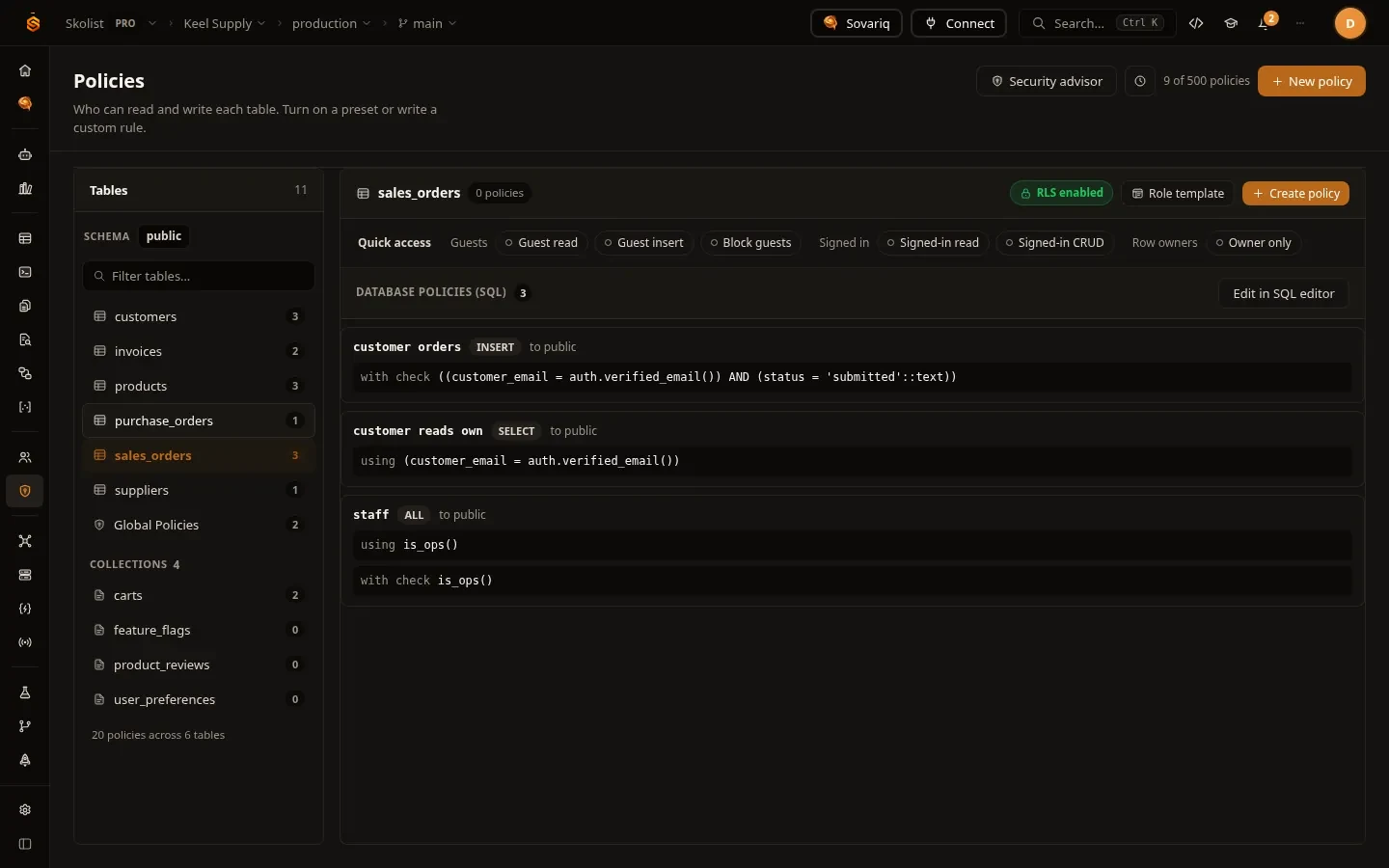
The tables are ordinary Postgres in your project. Open the Table Editor and the Policies page to see them:
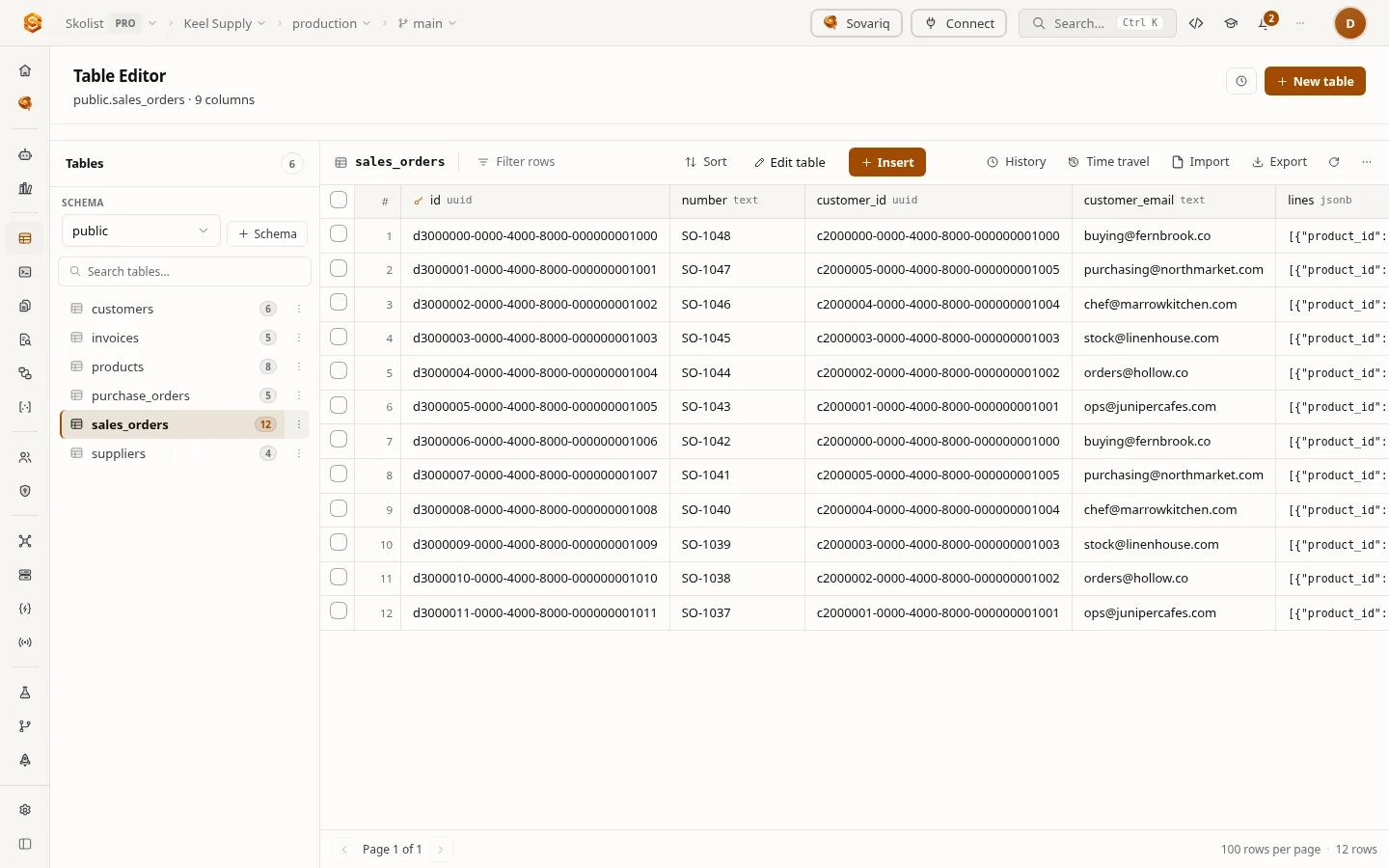
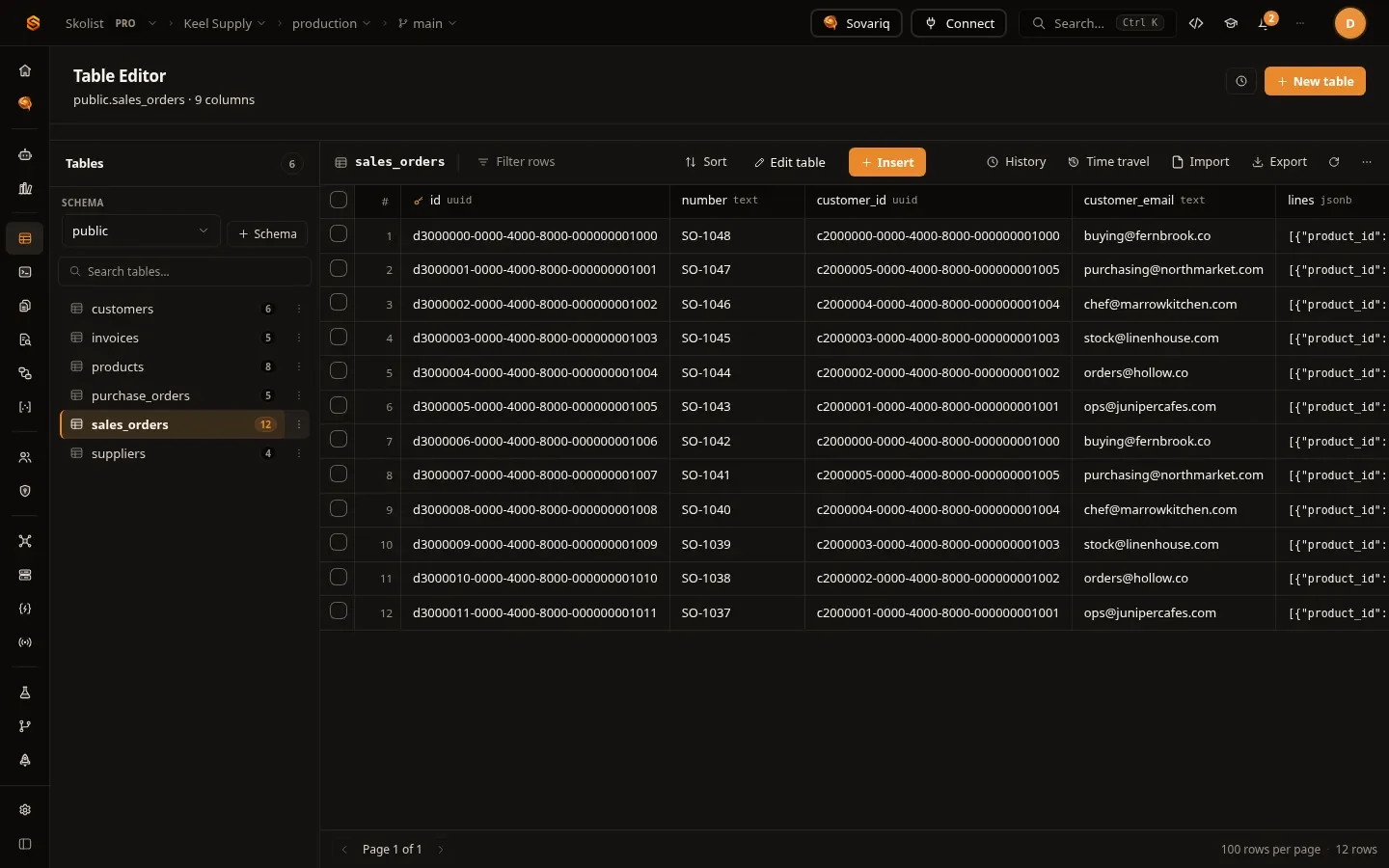
#5. Test it in the browser
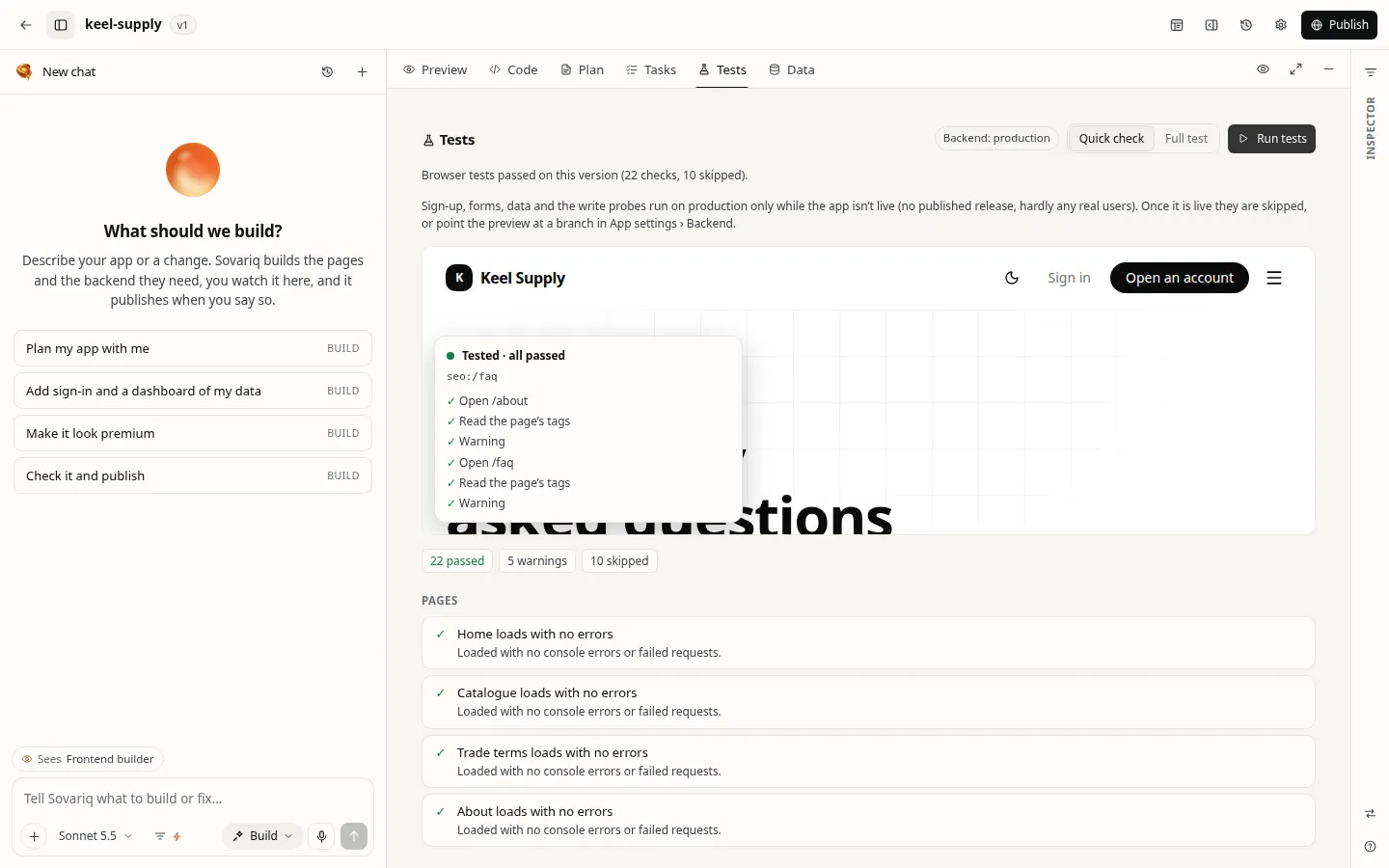
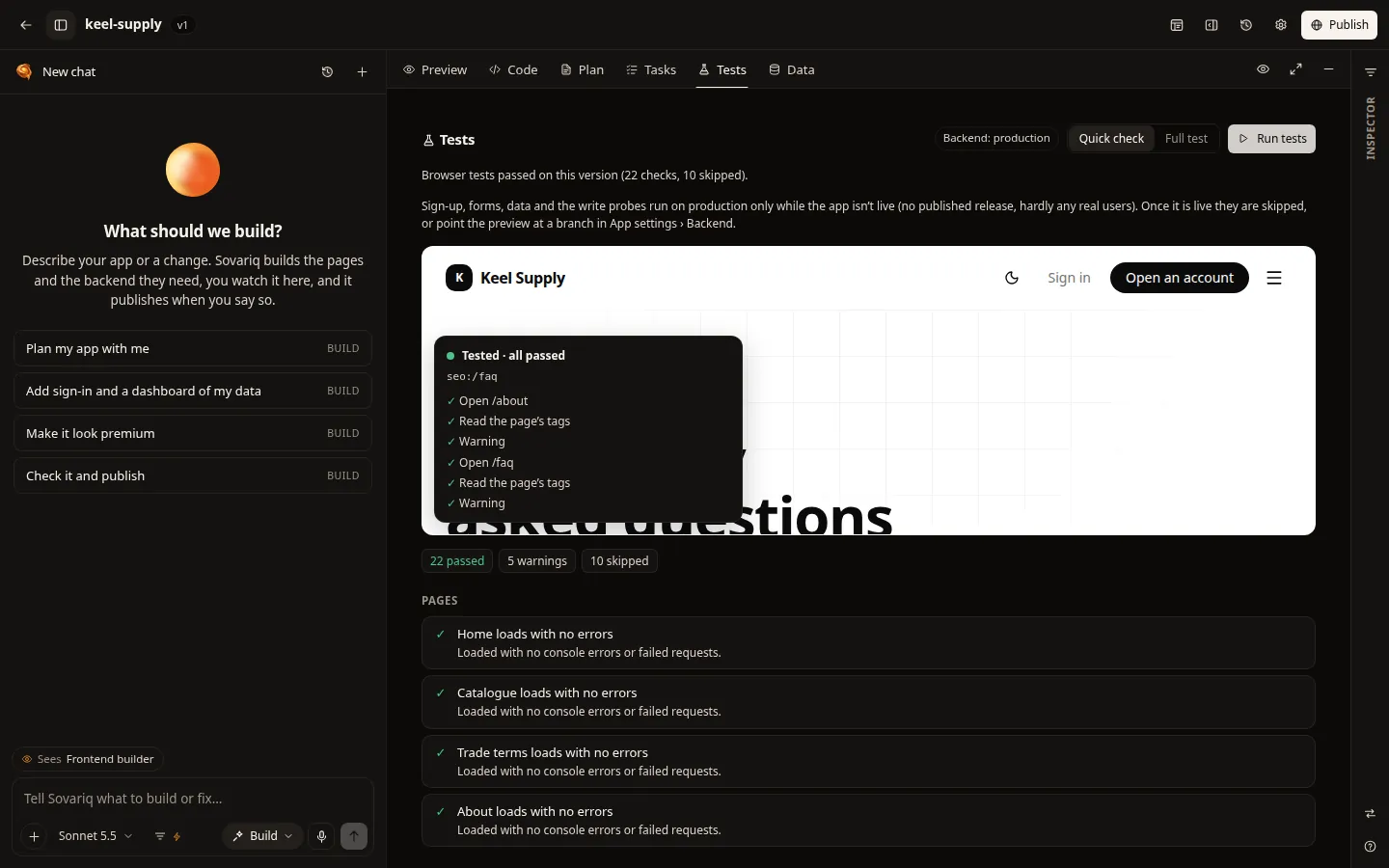
In the studio’s Tests tab, Run tests uses the app like a person would: it opens every page, follows the links, fills the forms, checks that private pages ask visitors to sign in, and checks what each visitor can reach. Full test goes further on a branch environment, with two test users who must not see each other’s rows.
#6. Publish
Choose Publish, pick the app’s address (<name>.sovarias.in) and publish the first version. The safety check runs first; then the app is built for production in your browser, given its favicon, link-preview image and sitemap, its public pages are prerendered for search engines, and it is released in one step.
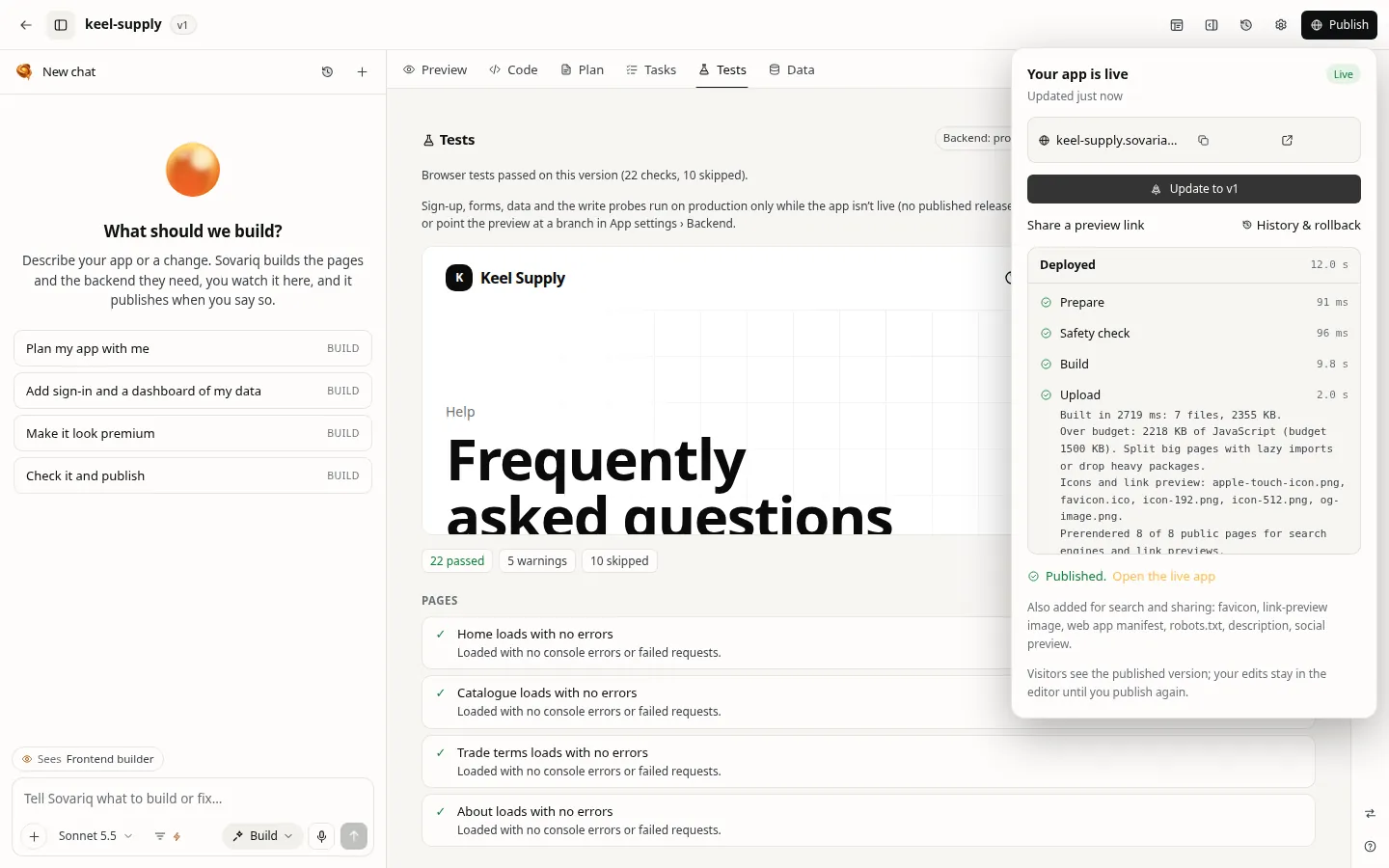
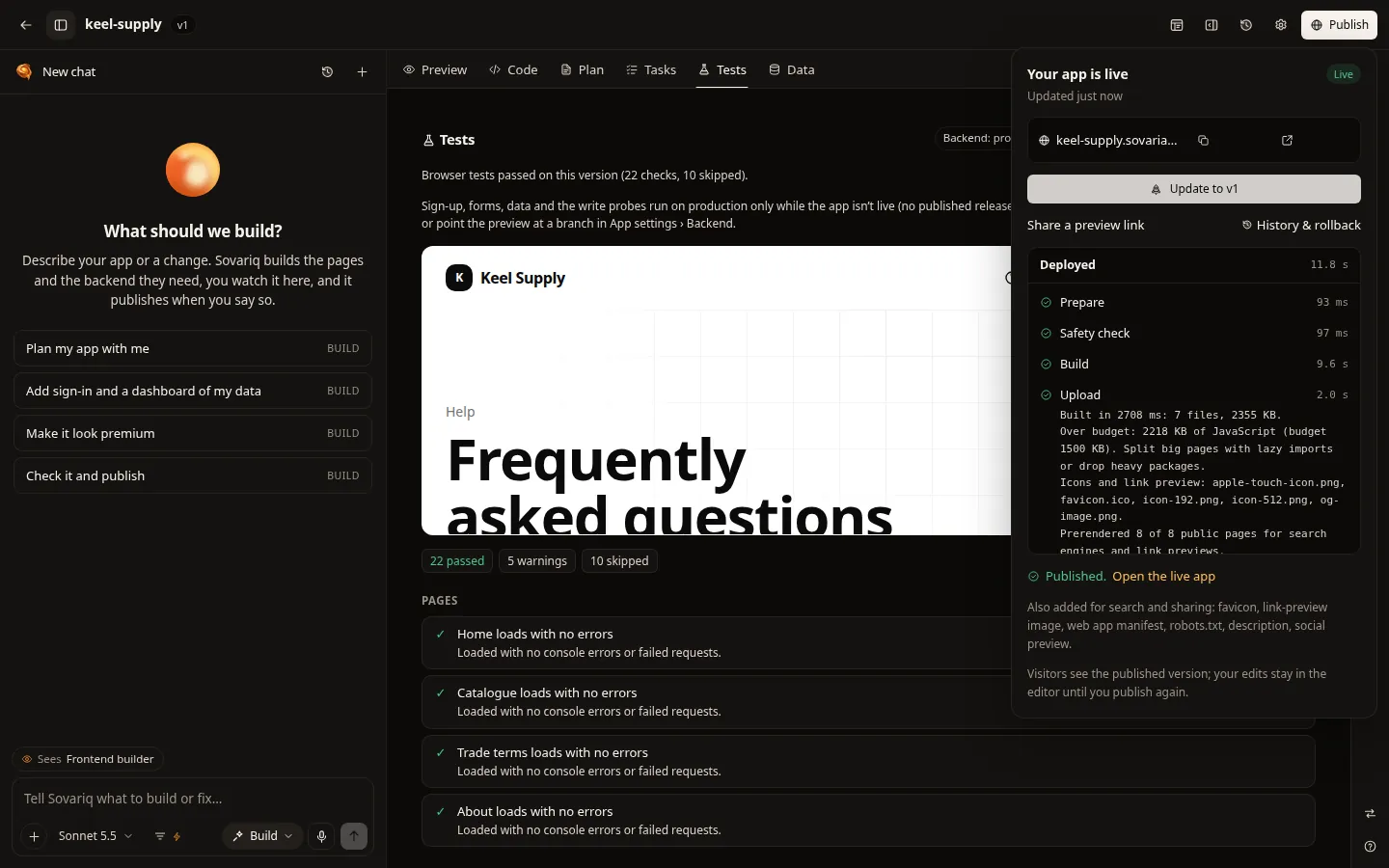
Every release stays in History: make any earlier one live again, or roll back to the last version that passed the safety check. To use your own domain, add it in Settings › Domains and create the two DNS records it shows; the certificate is issued and renewed for you (App Builder: describe an app, Sovariq builds it on your backend).
#7. Hand it to your team
Give each team member the OPS role (Users › Roles) and they get the back office at /erp: the overview, orders to confirm and ship, invoices to raise and mark paid, products, customers and purchasing. Customers sign up with the email on their customer record and order from the catalogue.